Connect your Shopify store
Connecting your store lets LzyReply look up each customer's order — status, tracking, and what they bought — and propose shipping-address fixes on orders that haven't shipped yet. With the one-click option it takes under a minute.
The easy way: one click (recommended)
LzyReply is on the Shopify App Store, so there's nothing to create or copy.
- Already using LzyReply? Go to Settings → your inbox → Store, type your store name, and click Connect with Shopify. Approve access in your Shopify admin and you're sent right back, connected.
- New to LzyReply? Install it from the Shopify App Store. Your account is created and your store connected in one go, and you pay through your regular Shopify bill.
LzyReply asks for just two permissions: read orders and update orders (used only for shipping-address fixes before an order ships).
The manual way (advanced)
Prefer not to use the App Store app? You can connect with your own custom app instead. Shopify recently moved custom apps into the Dev Dashboard. You'll create a small app there, give it permission to read and update orders, install it on your store, and copy two credentials — a Client ID and a Client Secret — into LzyReply. LzyReply uses them to securely connect to your store on your behalf.
Step-by-step
-
Open the Dev Dashboard.
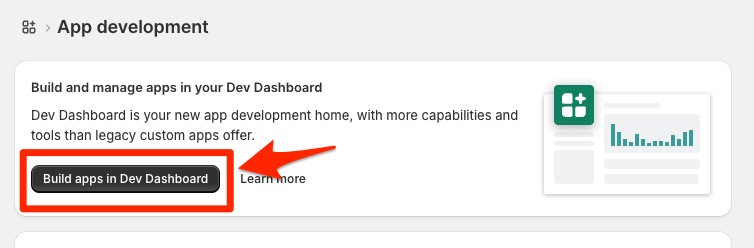
In your Shopify admin, go to Settings → Apps and sales channels → Develop apps, then click Build apps in Dev Dashboard.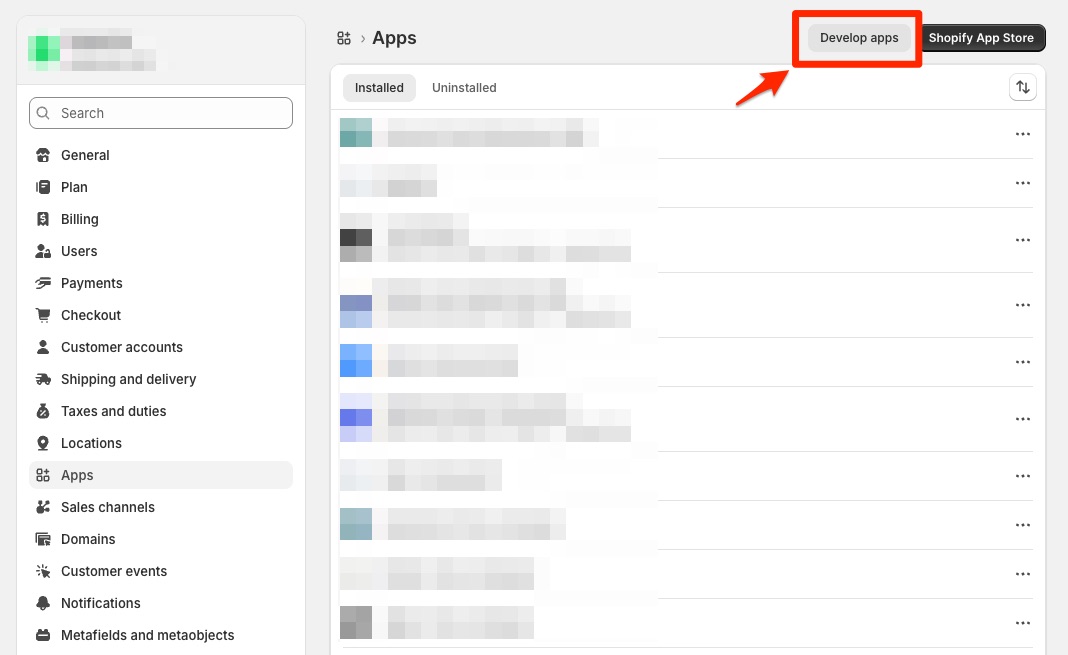
-
Create the app.
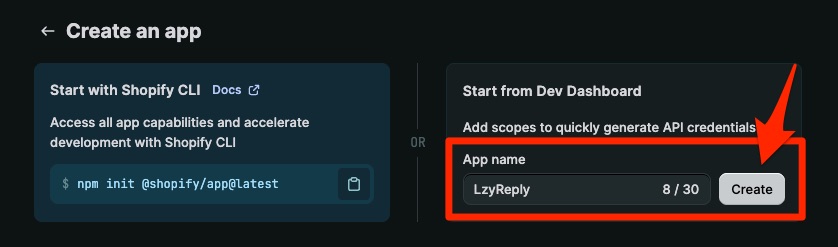
Click Create app → choose Start from Dev Dashboard → enter the name LzyReply → click Create.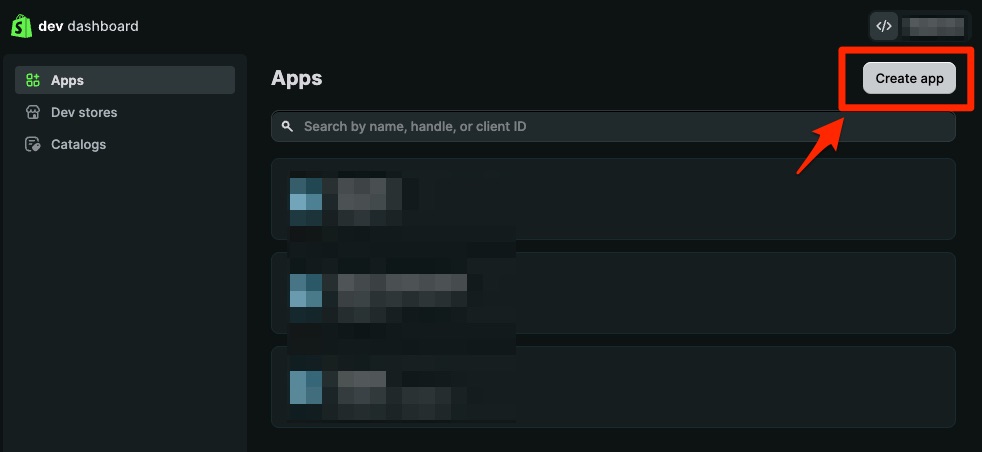
-
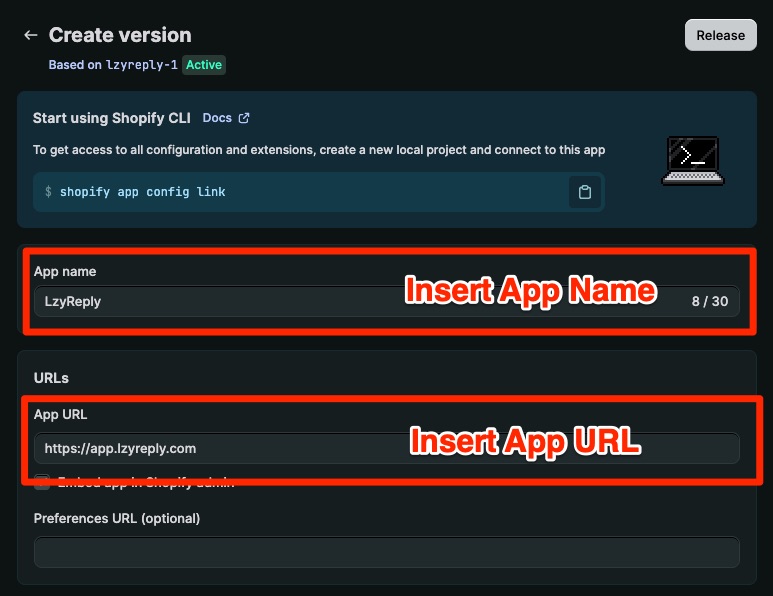
Set the App URL and Redirect URL.
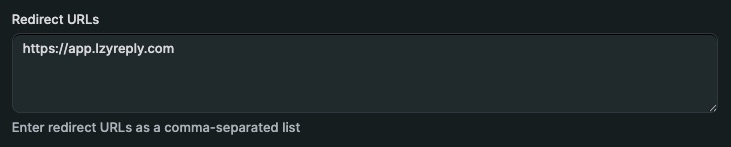
On the Create version page, set the App name to LzyReply and paste this into both the App URL and Redirect URLs boxes. LzyReply doesn't use the redirect — this just satisfies the form:https://app.lzyreply.com
-
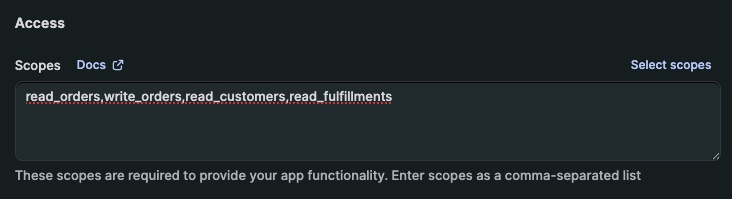
Set the access scopes.
On the same page, paste the following into the Access scopes box — these let LzyReply read orders & customers, see fulfillment/tracking, and update a shipping address:read_orders,write_orders,read_customers,read_fulfillments
-
Release the version.
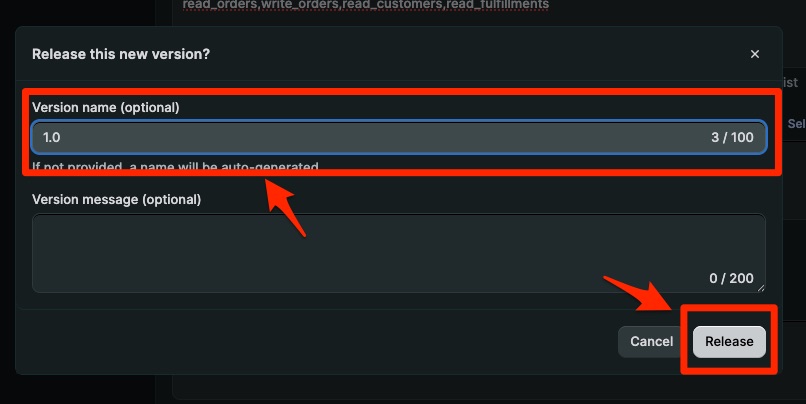
Click Release (top-right of the version page), then confirm with Release in the dialog. You can leave the version name as 1.0.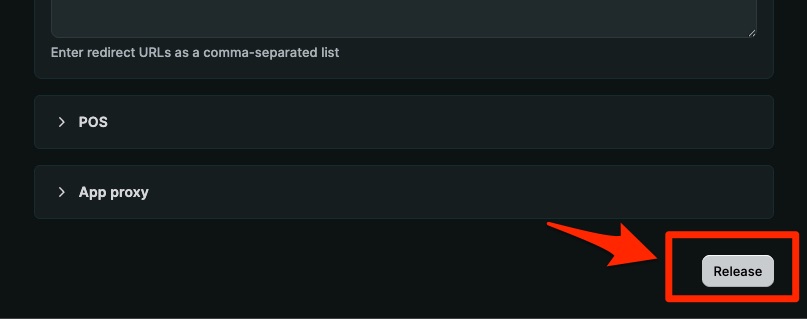
-
Install the app on your store.
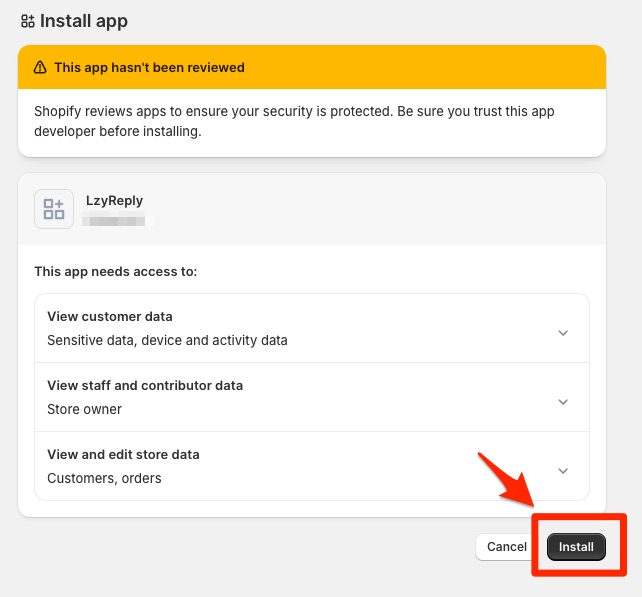
Open the LzyReply app's Overview, click Install app, then Install to confirm. This is where you grant access to your order & customer data — there's no separate approval step.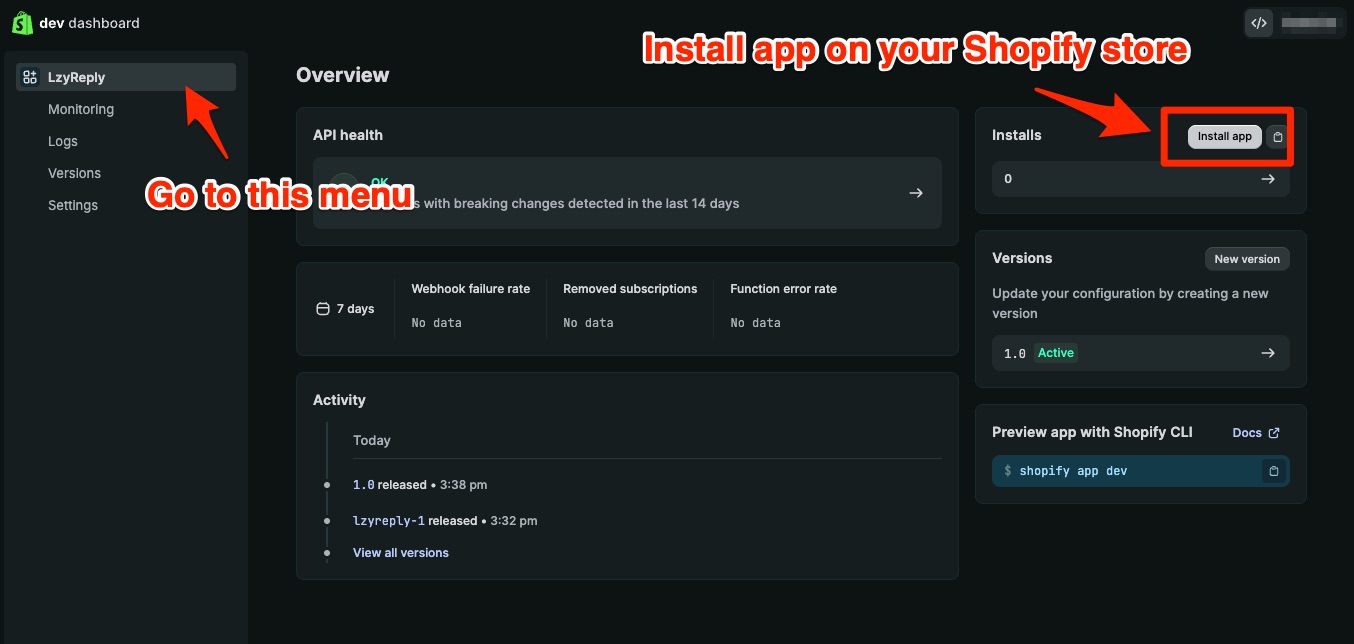
 Seeing "app.lzyreply.com refused to connect"? That's expected and harmless — Shopify tries to open the app's page right after installing, but LzyReply connects through your credentials instead. Just close that screen and head back to the Dev Dashboard.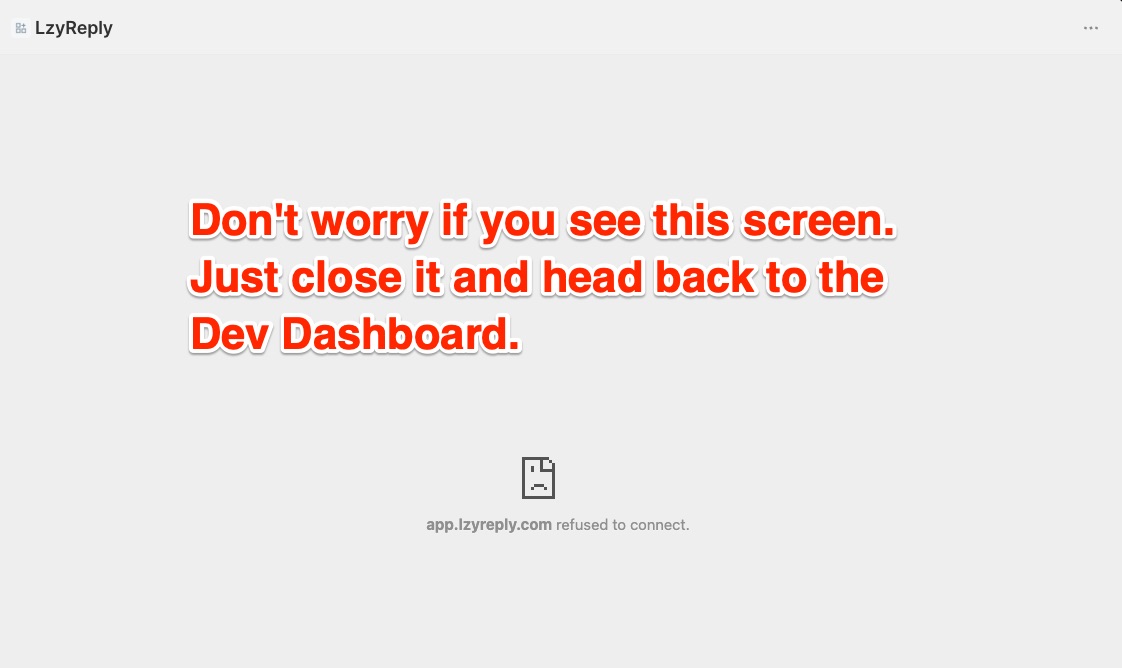
-
Copy your credentials.
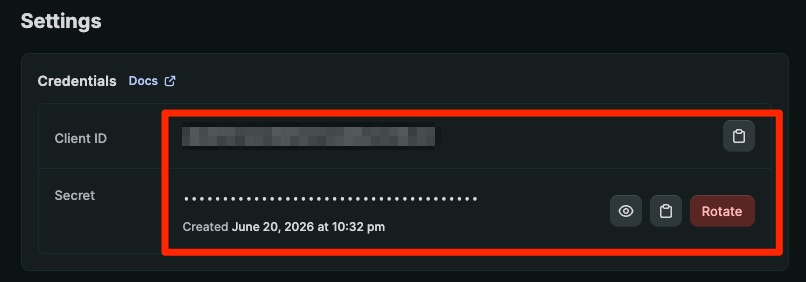
In the Dev Dashboard, open the app's Settings tab. You'll see a Client ID (a long string of letters and numbers) and a Secret (starts withshpss_). Copy both.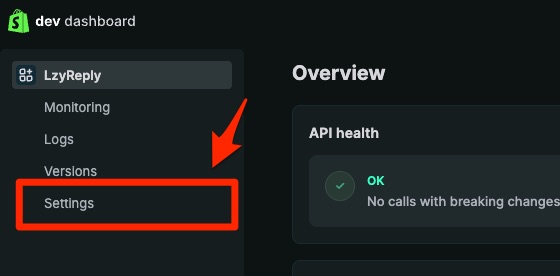
-
Paste them into LzyReply.
In LzyReply, go to the Shopify step (or Settings → your inbox → Store), enter your store name (we add.myshopify.comfor you), paste the Client ID and Client Secret, and click Connect store.
How address updates stay safe
By default LzyReply only proposes an address change for you to approve. If you turn on Auto-update shipping addresses in an inbox's Safety settings, it applies them itself — under exactly the same rules. Whenever an address update runs:
- It re-checks the order's live status at that moment.
- It updates the address only if the order hasn't entered fulfillment yet.
- If the order has already shipped or is being fulfilled, the change is blocked and the reply is held for you — so a customer is never told an address was changed when it wasn't.
Cancellations and refunds are always left to you.
Troubleshooting
Store shows "connection expired — reconnect"
Shopify needs you to re-approve LzyReply. Open the inbox's Store tab and click Reconnect with Shopify, or just open LzyReply from your Shopify admin → Apps.
Store shows "app uninstalled"
LzyReply was removed from your Shopify store. Reinstall it from the Shopify App Store to turn order lookup back on.
"Couldn't connect to Shopify" (manual way)
- Double-check your store name is the one in your
*.myshopify.comaddress (not your custom domain). - Make sure you clicked Release on a version that includes
read_orders,write_orders,read_customers,read_fulfillments. - Make sure you clicked Install app — an app that's created but not installed can't be used.
- Re-copy the Client Secret (it's easy to miss a character). It should start with
shpss_.
Your credentials worked, but no order data shows up
This almost always means the app isn't fully released or installed. Make sure you clicked Release on a version that includes all four scopes (read_orders,write_orders,read_customers,read_fulfillments), and that you clicked Install app and approved the data access. Then reopen the conversation in LzyReply.
Where are my credentials again?
In the Dev Dashboard, open your app → Settings tab. The Client ID and Client Secret are listed there. You can copy them again anytime.